How to Fix a TV That Says No Signal (HDMI, Cable Box or Antenna)

On this page
“No signal” on a TV means the screen is not receiving a picture from the device on the selected input. Most of the time the TV is simply on the wrong input, or the HDMI cable is loose or faulty. Work through the steps in order. They apply to any brand, though menu names differ.
Quick fix: Press the Input or Source button on the remote and select the HDMI port your device is plugged into. Make sure the device itself is switched on.
What causes the no signal message
- The TV is set to a different input than the one the device uses.
- The HDMI cable is loose, damaged or not fully pushed in.
- The connected device is off, asleep or has crashed.
- A faulty HDMI port or cable.
- An output setting the TV cannot display, such as a resolution that is too high.
- A software glitch that a power cycle clears.
1. Select the right input
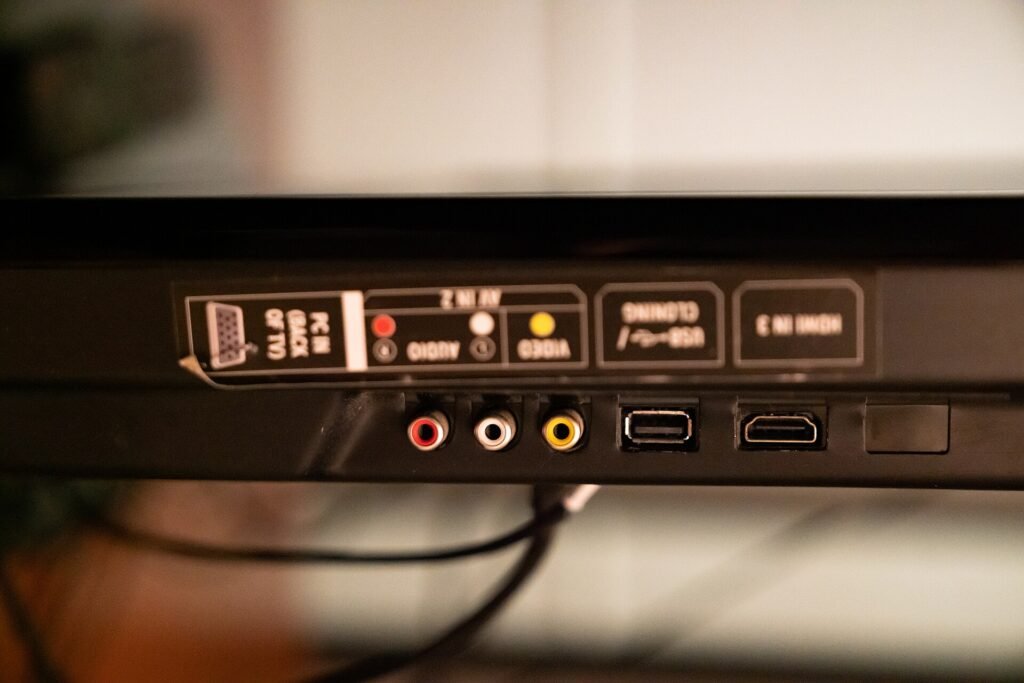
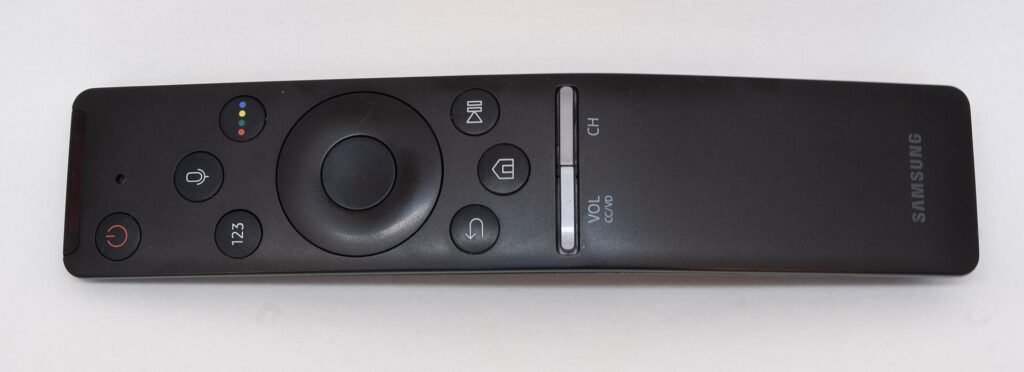
Press Input or Source on the remote and choose the HDMI number printed beside the port you used. If you are unsure, cycle through every HDMI input and wait a few seconds on each.
2. Check that the device is on
Make sure the console, streaming stick, cable box or computer is powered and awake. Press a button on its remote or controller. Some devices need a minute to send a picture after start-up.
3. Reseat the cable at both ends
Unplug the HDMI cable from the TV and the device, check that the connectors are clean and not bent, and push them back in firmly. A cable that is slightly out of the port is a very common cause.
4. Try another HDMI port and cable
Plug the device into a different HDMI port on the TV and select that input. Then try a different HDMI cable. If it works on another port or cable, the original port or cable was the problem. If the TV has an ARC or eARC port, it still works for video, so you can use it.
5. Power cycle the TV and the device
Turn both off, unplug them from power for about 60 seconds, plug them back in, and turn the TV on first, then the device. This clears many handshake problems between the two.
6. Turn off HDMI control features
Features that let devices control each other can sometimes cause a blank screen. They have brand names such as Anynet+, Bravia Sync, Simplink or HDMI-CEC. Find them in the TV’s settings under General or External devices, turn them off, and test again.
7. Check the output resolution
If the device is a computer, press Win + P and choose Duplicate, or open Settings > System > Display and lower the resolution and refresh rate. If it is a console, start it in its safe or low-resolution mode, following the maker’s instructions, then set a resolution your TV supports.
8. Update or reset the TV
Warning: A factory reset erases your TV settings and signed-in apps. Use it only after the other steps have failed, and note your Wi-Fi and account passwords first.
Check the TV’s settings for a software update. As a last resort, find the factory reset option under General, Support or System.
If your picture comes from an antenna, cable box or satellite
The same No signal message appears when the TV is not receiving a broadcast signal. The checks differ from the HDMI steps above, so first work out how your picture arrives: through an HDMI cable from a cable or satellite box, or through a coaxial cable plugged straight into the TV’s antenna socket.
Antenna (over-the-air) TVs
- Set the TV input to TV, Antenna or Air, not an HDMI port.
- Check the coaxial cable at the TV and at the wall or antenna, and tighten the connectors by hand.
- Run a channel scan. Look in the TV’s settings under Channels, Broadcasting or Tuning and choose Auto tuning or Channel scan. The name varies by brand. Scan again after moving the antenna or if channels have changed.
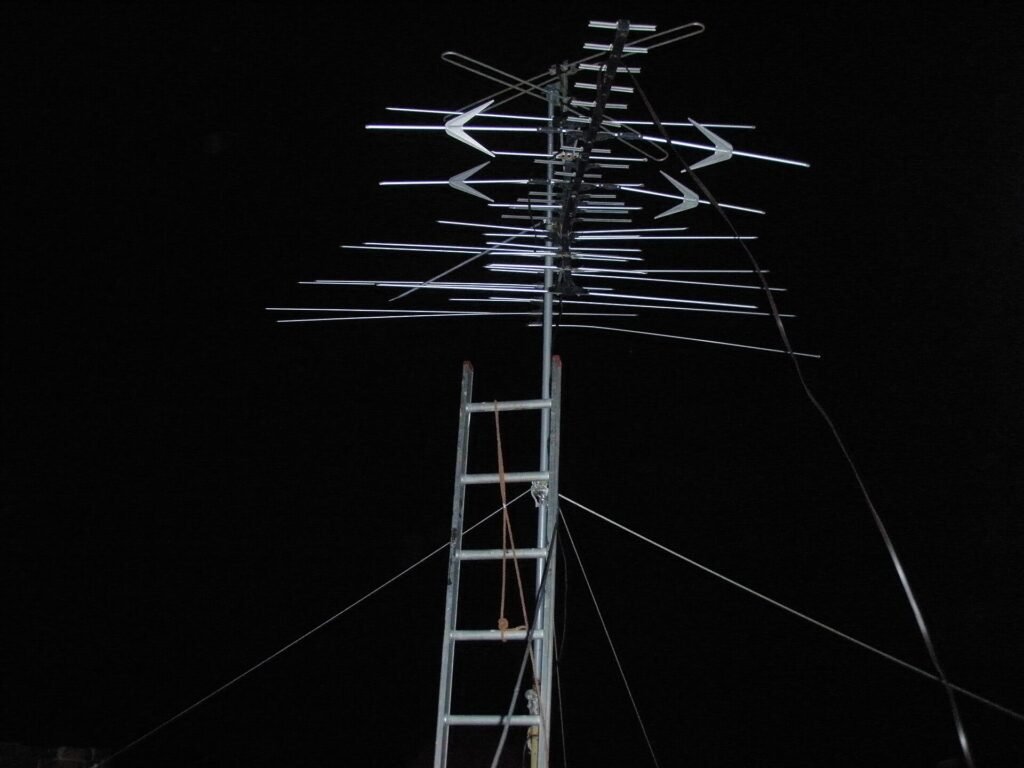
- Move or re-aim the antenna, ideally near a window and away from metal and other electronics. If you have an amplified antenna, check that its power adapter is plugged in.
- Look for damaged cable, a loose splitter or a corroded connector.
Cable or satellite box
- Turn the box off, unplug it for about a minute, plug it back in and wait for it to finish starting.
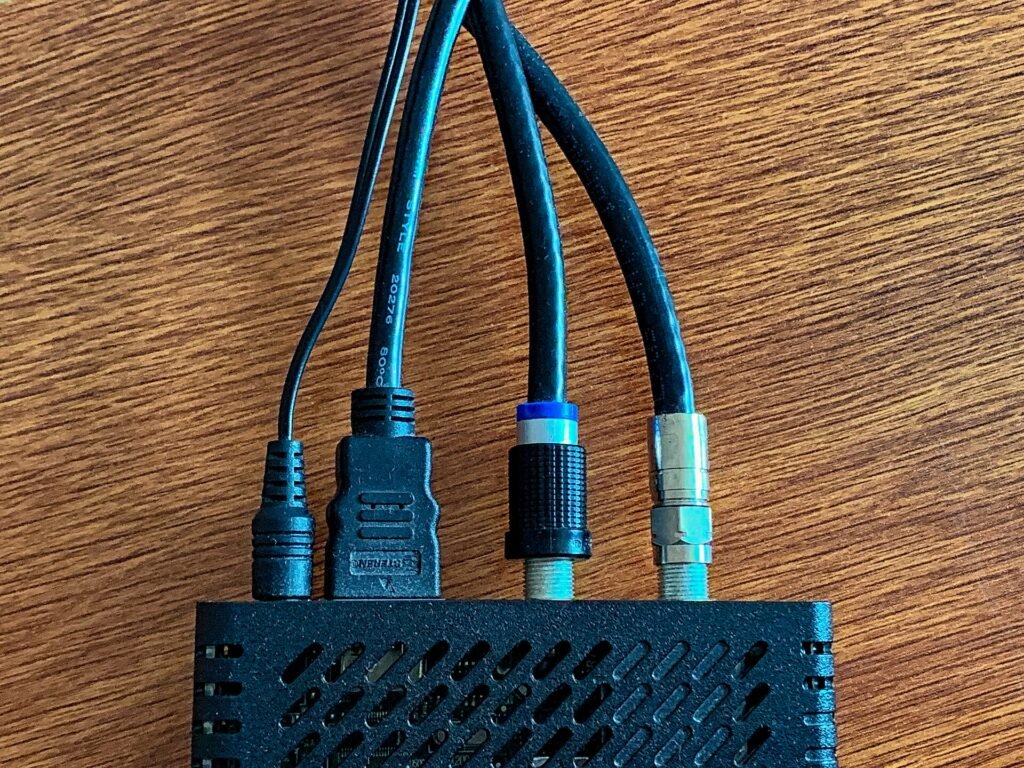
- Check that the TV is on the input where the box is connected, and that the cable from the wall or dish to the box is secure.
- Check your provider’s outage page. Heavy rain or snow can interrupt satellite signals.
- If the box shows its own No signal message, the fault is between the wall or dish and the box. Contact your provider, and do not climb on a roof to adjust a dish.
Why does my TV say no signal when the cable box is on?
Usually the TV is on the wrong input, the HDMI cable between the box and the TV is loose, or the box needs a restart. Work through the input, cable and power-cycle steps above in that order.
Frequently asked questions
Why does the TV say no signal only sometimes?
An intermittent message often means a loose or worn cable or a failing port. Replace the cable first.
Does a no signal message mean the TV is broken?
Not usually. If another device works on the same input, the TV is fine and the problem is the first device or its cable.
Does a more expensive HDMI cable help?
Only if the current cable is faulty or too slow for the picture you want, such as 4K at a high refresh rate. A properly working, certified cable of the right type is enough.
Can a bad HDMI cable cause no signal?
Yes. A damaged, loose or worn HDMI cable is one of the most common causes of a No signal message, especially when the picture works in one position or port and not another. Reseat both ends, test with a different cable, and look for bent pins. Trying another cable of the right type is a cheap test before you blame the TV or the device.
When to contact support
If no input shows a picture from any device, or the screen is dark even though the TV’s own menus appear, contact the TV maker. If the problem is that apps buffer rather than the input being blank, see how to fix smart TV apps that buffer or will not load.
Related guides
Check if the Source Device Is Connected and Powered On: How to Fix It
Seeing "Check if the source device is connected and powered on" on your TV? Follow these 10 steps to restore the picture.
TV Apps Not Working: How to Fix Apps That Will Not Open or Keep Crashing
TV apps that will not open or keep crashing are usually a software glitch, an old app or full storage. Restart the TV, update…
How to Fix Smart TV Apps That Buffer or Will Not Load
Smart TV apps that buffer or will not load are usually a network or restart problem. Find out whether one app or every app…