How to Fix a Printer Showing Offline on Windows


On this page
When Windows shows a printer as Offline, it means the PC cannot talk to the printer, even if the printer is on and has paper. The cause is usually a connection problem, a stuck print queue, the “Use Printer Offline” setting, or an address change on a network printer. Check these in order.
Quick fix: Turn the printer off and on, make sure it is on the same Wi-Fi as your PC, then open the print queue and make sure Use Printer Offline is not ticked (step 3).
What causes a printer to show as offline
- The printer is off, asleep, in an error state or on a different network.
- A loose USB cable or a lost Wi-Fi connection.
- Jobs stuck in the print queue, or a stopped Print Spooler service.
- The Use Printer Offline option is turned on.
- A network printer that received a new IP address, so Windows is pointing at the old one.
- A damaged or outdated printer driver.
1. Check the printer and the connection
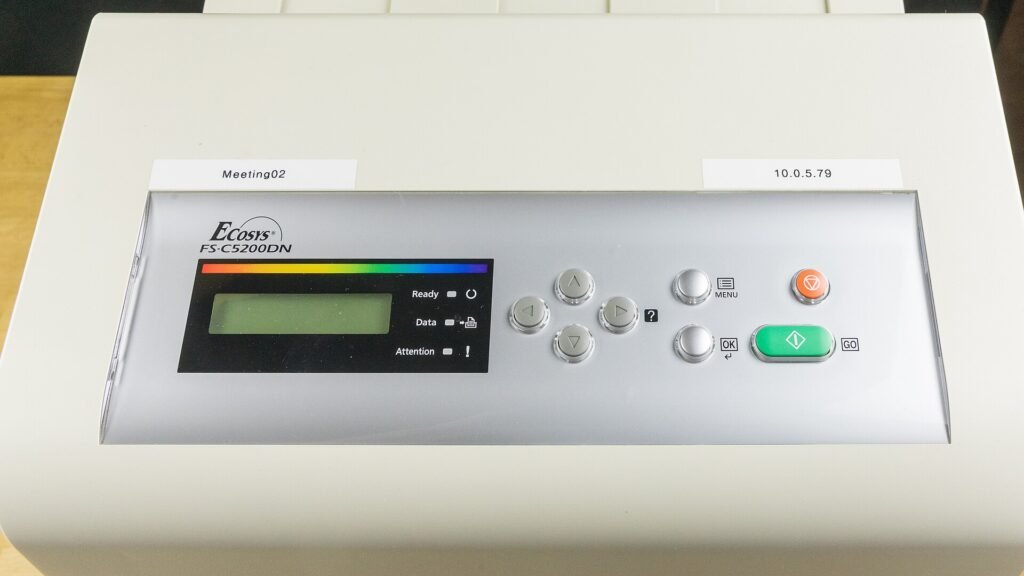
Check that the printer has power, no error lights, paper and ink or toner. For a USB printer, try a different cable and port. For a wireless printer, check that the Wi-Fi light shows a connection and that the PC is on the same network. Restart the printer, the PC and the router if in doubt.
2. Run the printer troubleshooter
Open Settings > System > Troubleshoot > Other troubleshooters and run Printer. Apply any suggestions and try printing a test page.
3. Turn off Use Printer Offline
Open Settings > Bluetooth & devices > Printers & scanners, select your printer and choose Open print queue. In the queue window open the Printer menu and make sure Use Printer Offline is not ticked. If you see Pause Printing ticked, clear that as well.
4. Clear the print queue and restart the spooler
Right-click the Start button and choose Terminal (Admin) or Command Prompt (Admin). Run these commands one at a time:
net stop spooler
del /Q /F /S "%systemroot%System32spoolPRINTERS*.*"
net start spooler
This deletes jobs that are waiting to print and restarts the service that manages printing.
Note: Any documents waiting in the queue are cancelled and you will need to print them again.
5. Set the printer as the default
In Printers & scanners, turn off Let Windows manage my default printer, then select your printer and choose Set as default. Print again from your app and check that the right printer is selected.
6. Check the printer’s address (network printers)
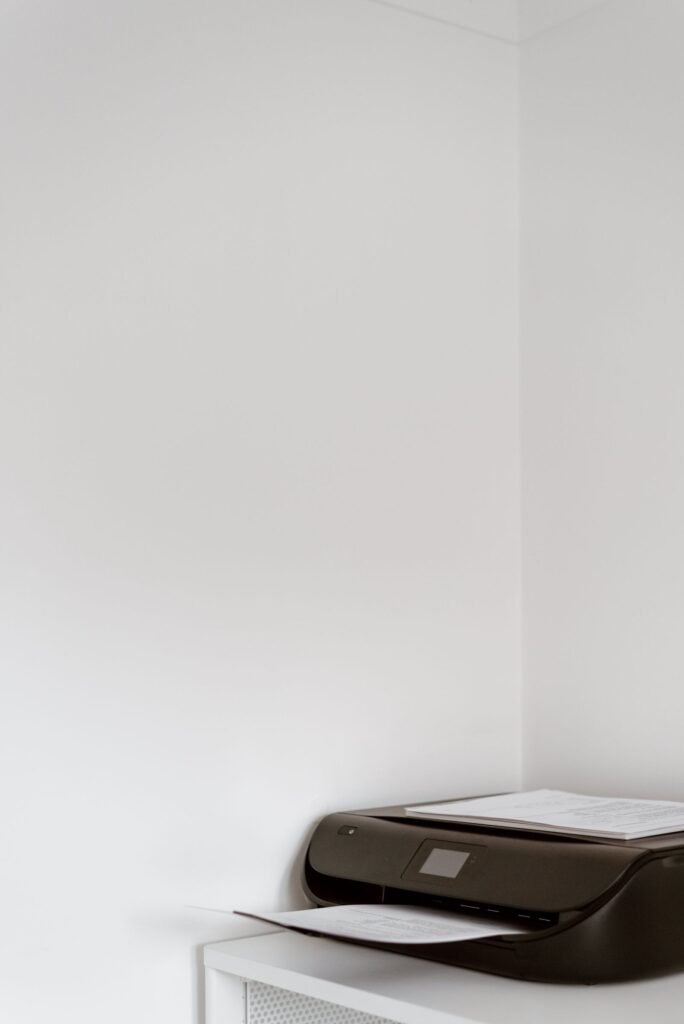
If the printer is on Wi-Fi or Ethernet, its address may have changed. Print a network configuration page from the printer’s menu to see its current IP address. In Printers & scanners, open the printer’s Printer properties, go to the Ports tab and check that the port uses the same address. If it does not, add a new Standard TCP/IP port with the right address. To prevent the problem returning, set a reserved or fixed address for the printer in your router.
7. Reinstall the printer driver
In Printers & scanners, select the printer and choose Remove. Restart the PC. Download the latest driver for your exact model from the printer maker’s support website, install it and add the printer again.
Frequently asked questions
Why does my printer keep going offline?
On wireless printers it is usually an address change or the printer going to sleep and dropping Wi-Fi. A reserved IP address and a stable connection help.
Is deleting the PRINTERS folder files safe?
Yes. They are temporary spool files for jobs waiting to print. Windows recreates them.
My printer works on my phone but not on my PC. Why?
The printer itself is fine. Look at the PC’s port, driver or the offline setting in steps 3, 6 and 7.
When to contact support
If the printer will not connect to any device, contact the printer maker. For more printing help, see our printer problems overview, and for general Wi-Fi checks read our Wi-Fi and internet overview.
Related guides
Allowed Memory Size of 268435456 Bytes Exhausted (256 MB): What to Do
268435456 bytes is a 256 MB PHP limit. If you already raised it, find the plugin or task using the memory before raising it…
Allowed Memory Size of 134217728 Bytes Exhausted: How to Fix It
134217728 bytes is a 128 MB PHP memory limit. Raise it to 256 MB in wp-config.php, your hosting panel or php.ini, then confirm the…

How to Fix the PHP Allowed Memory Size Exhausted Error
The PHP allowed memory size error means a script needed more memory than PHP allows. Raise the limit safely, then find what is using…