TV Apps Not Working: How to Fix Apps That Will Not Open or Keep Crashing


On this page
If the apps on your smart TV will not open, close straight after launching, or show an error, the cause is usually a temporary software fault, an outdated app or full storage. Less often, the streaming service itself is down, or an older TV no longer supports the app. This guide is for apps that fail to start or keep crashing. If the app opens but the picture freezes or buffers, read how to fix smart TV apps that buffer or will not load instead.
Quick fix: Unplug the TV from the wall for 60 seconds, plug it back in, and open the app again. If it still fails, update the app and the TV software (steps 5 and 6).
What makes TV apps stop working
- A temporary glitch in the TV’s software that a full restart clears.
- An outdated app or outdated TV firmware.
- Not enough free storage for the app to run.
- A problem with your account, subscription or the number of devices signed in.
- An outage at the streaming service.
- An older TV model that the app no longer supports.
1. Find out how many apps are affected
Try two or three other apps. If only one app fails, the fault is probably that app or its service, so focus on steps 2, 6, 7 and 8. If every app fails, the problem is the TV or its connection, so start with steps 3 and 4.
2. Check whether the service is down
Open the same app on your phone or laptop. If it fails there too, or other people report problems, the service may be having an outage. Check the service’s official help page or social account for status updates, and wait before changing anything on the TV.
3. Restart the TV completely
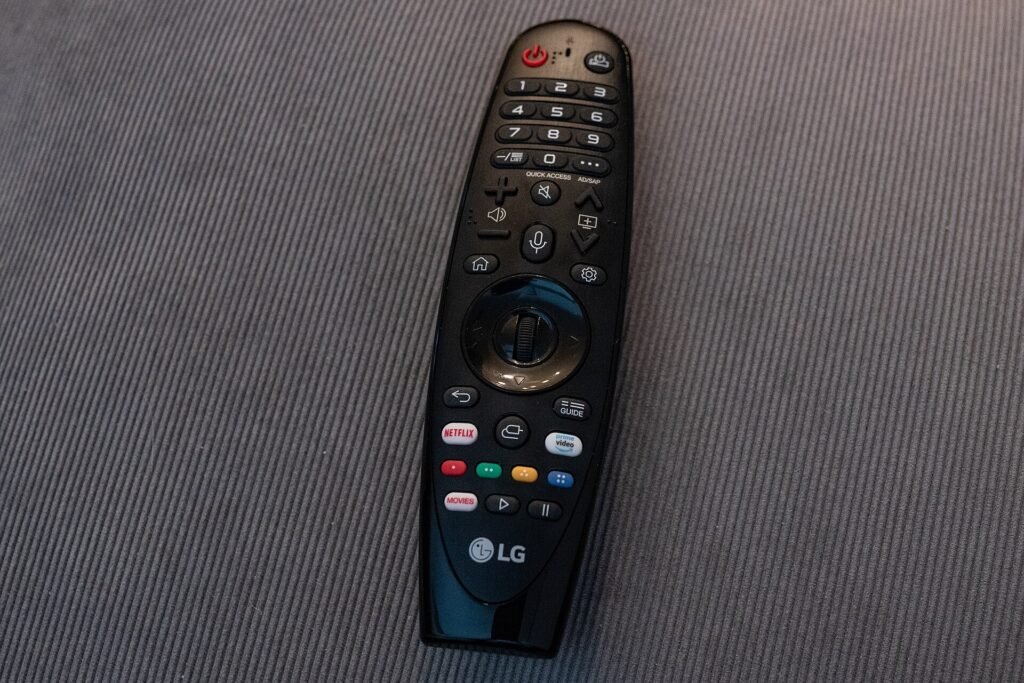
Turn the TV off, unplug it from the wall for 60 seconds, then plug it in and turn it on. Pressing the standby button is not enough, because many TVs keep running in standby.
4. Check the internet connection
Open the TV’s network settings and run its connection test. If the test fails, restart the router and modem by unplugging them for 30 seconds. Check that another device on the same Wi-Fi can get online. For wider network checks, see our Wi-Fi and internet overview.
5. Update the app
Open your TV’s app store, find the app and install any available update. Many launch failures are fixed in a newer version. Some TVs update apps automatically, but only when automatic updates are on, so check.
6. Update the TV software
In the TV’s settings, look under General, Support or System for Software update and install anything that is available. If an update is waiting, apps can fail until it is installed. Do not turn the TV off while it updates.
7. Free up storage
A TV with almost no free space can fail to run apps. Open the TV’s storage or app settings, then remove apps you no longer use. Restart the TV afterwards and try the problem app again.
8. Clear the app cache or reinstall the app
On Android TV and Google TV open Settings > Apps, select the app and choose Clear cache. Use Clear data only if that fails, because it signs you out. On other brands, remove the app from your app list and install it again from the app store. The menu is often opened by holding the OK or Enter button on the app, but it differs between models.
9. Sign out and sign in again, and check your account
If the app opens but shows an error about your account, sign out and sign in again. Check on another device that your subscription is active and that you have not reached the limit on devices or simultaneous streams.
10. Check the date, time and DNS
Set the TV’s date and time to automatic, because a wrong clock breaks secure connections. If one app fails and others work, try a different DNS server in the TV’s advanced network settings.
11. Consider whether the TV is too old
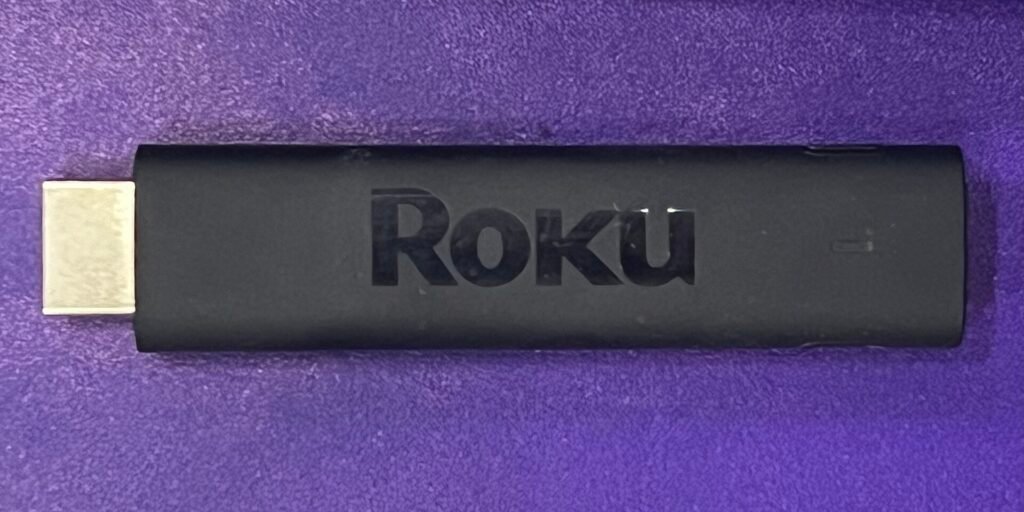
Streaming services stop supporting older TV models, and when that happens the app can stop opening even though nothing is broken. If the app worked until recently, the TV is several years old, and no software update is offered, support may have ended. Check the service’s help page for supported devices. An inexpensive external streaming device is a common fix, because it gets updates the TV no longer receives.
12. Factory reset as a last resort
Warning: A factory reset erases accounts, apps and settings on the TV. Only do this after the other steps have failed, and make sure you know your Wi-Fi and streaming passwords.
Find the reset option in the TV’s settings under General, Support or System. The exact name depends on the brand.
Frequently asked questions
Why did my TV apps suddenly stop working?
The usual reasons are a pending software update, a service outage, full storage, or the service ending support for your TV model. Steps 2, 6, 7 and 11 cover these.
Why does the app work on my phone but not my TV?
That points to the TV: its software, storage, connection or model support. Work through steps 3 to 8.
Will clearing the app cache delete my account?
No. Clearing the cache removes temporary files only. Clearing the data signs you out, so you will need your login details.
When to contact support
If the app fails on a different network and after a reinstall, contact the app’s support team with the exact error message. If every app fails after a software update, contact the TV maker. If only a very old TV is affected, an external streaming device is usually the practical answer.
Related guides
Check if the Source Device Is Connected and Powered On: How to Fix It
Seeing "Check if the source device is connected and powered on" on your TV? Follow these 10 steps to restore the picture.
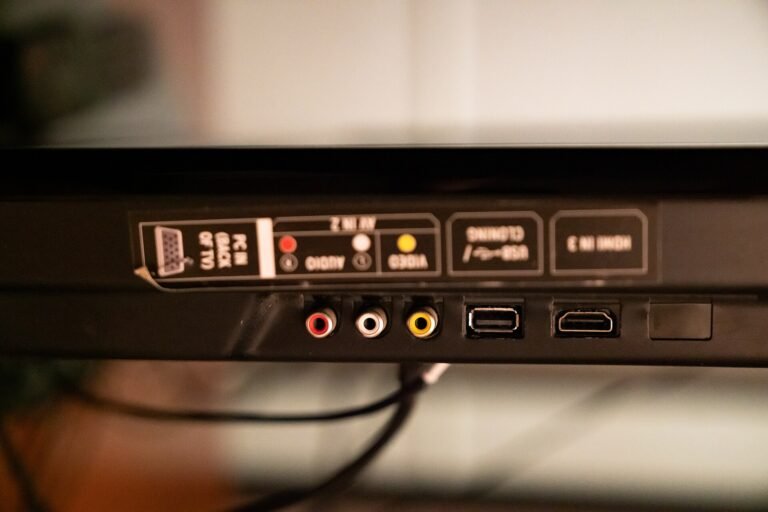
How to Fix a TV That Says No Signal (HDMI, Cable Box or Antenna)
A TV that says No signal is usually on the wrong input, has a loose cable, or is not receiving a broadcast signal. Fix…
How to Fix Smart TV Apps That Buffer or Will Not Load
Smart TV apps that buffer or will not load are usually a network or restart problem. Find out whether one app or every app…