Why Does My Phone Keep Losing Service? Causes and Fixes for iPhone and Android

On this page
A phone that keeps dropping to “No Service”, “SOS only” or “Searching” has one of three problems: the place you are in has poor coverage, your carrier’s network has a fault, or something on the phone or SIM is wrong. Working out which one comes first, because it decides which fixes are worth trying. The steps below apply to both iPhone and Android.
Quick fix: Turn airplane mode on for 30 seconds, turn it off, then restart the phone. Also check whether another phone on the same carrier has service where you are.
Why a phone keeps losing service
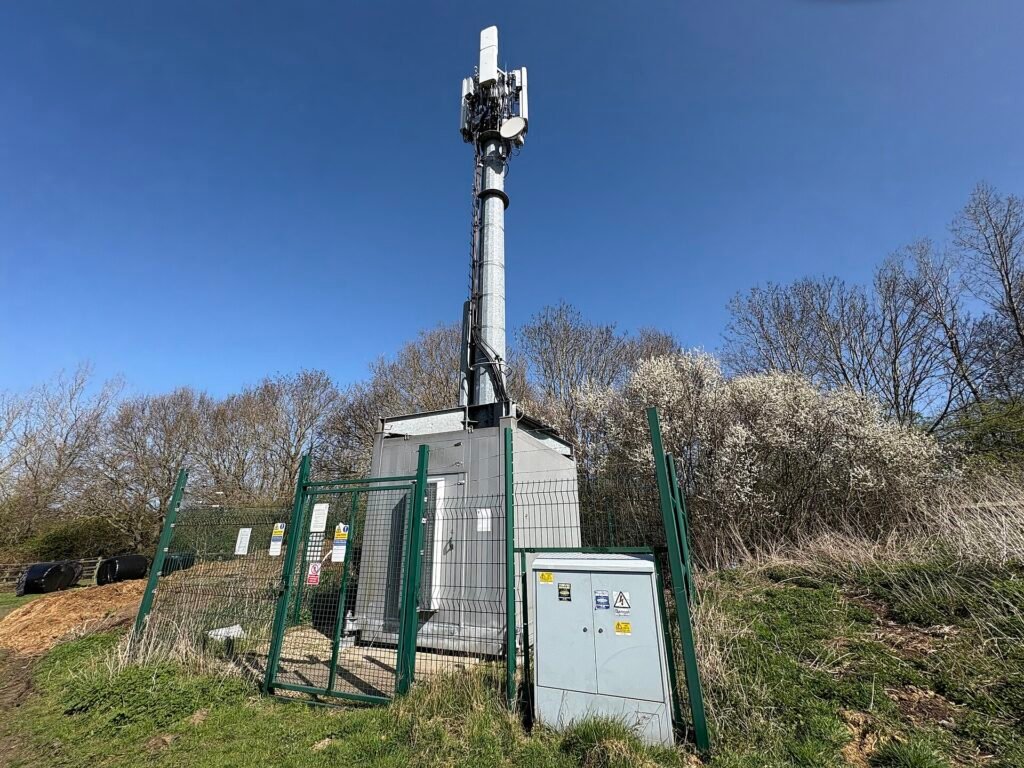
- Weak coverage indoors, in a basement, in rural areas or while travelling.
- A temporary outage or maintenance on your carrier’s network.
- The phone switching between network types, such as 5G and 4G, and failing to reconnect.
- A SIM card that is loose, dirty or damaged.
- Outdated phone software or carrier settings.
- A case or hand covering the antenna, or physical damage.
- An account problem, such as an unpaid bill or a deactivated SIM.
1. Work out whether it is the place, the network or the phone
Ask someone nearby on the same carrier whether their phone has service, or check your carrier’s outage page. If you only lose service in certain rooms or places, the cause is coverage, and the fix is Wi-Fi calling (step 7) or a signal booster approved by your carrier. If you lose service everywhere and others do not, the phone, SIM or account is the likely cause.
2. Toggle airplane mode and restart
Turn on airplane mode, wait about 30 seconds, and turn it off. If the phone still shows no service, restart it. This forces the phone to search for the network again and clears many temporary faults.
3. Check that cellular is on
On iPhone open Settings > Cellular (or Mobile Data) and check that your line and cellular data are on. On Android open Settings > Network & internet > SIMs and check that your SIM is enabled. If you are abroad, check that data roaming is allowed, and that your plan includes roaming.
4. Try a different network mode
Phones that keep moving between 5G and 4G can drop service at the edge of coverage. On iPhone go to Settings > Cellular > Cellular Data Options > Voice & Data and choose LTE or 5G Auto instead of 5G On. On Android open Settings > Network & internet > SIMs, select your SIM and change Preferred network type to LTE or 4G. Menu names vary by phone.
5. Remove and reinsert the SIM card
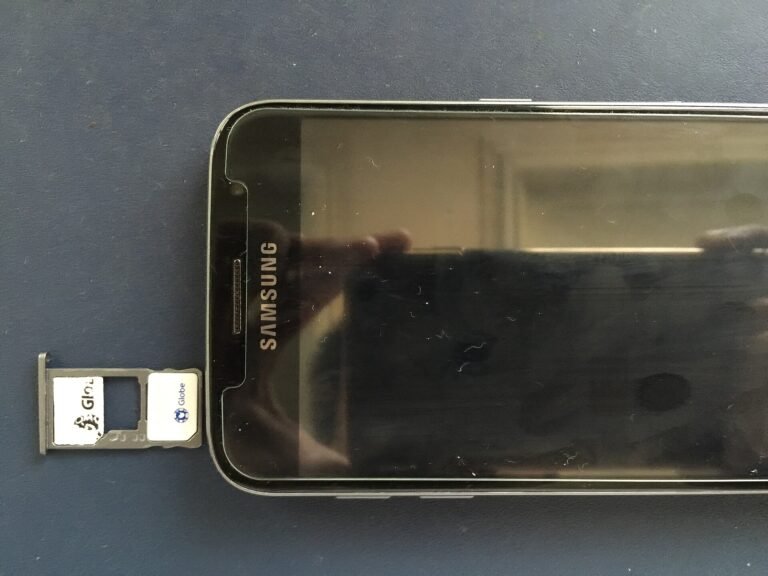
Switch the phone off. Use the small ejector tool that came with it, or a straightened paperclip, to open the SIM tray. Take the SIM out, check that it is clean, flat and not cracked, and put it back firmly in the same position. Switch the phone on. If your phone uses an eSIM, you cannot do this, so contact your carrier about re-activating the eSIM.
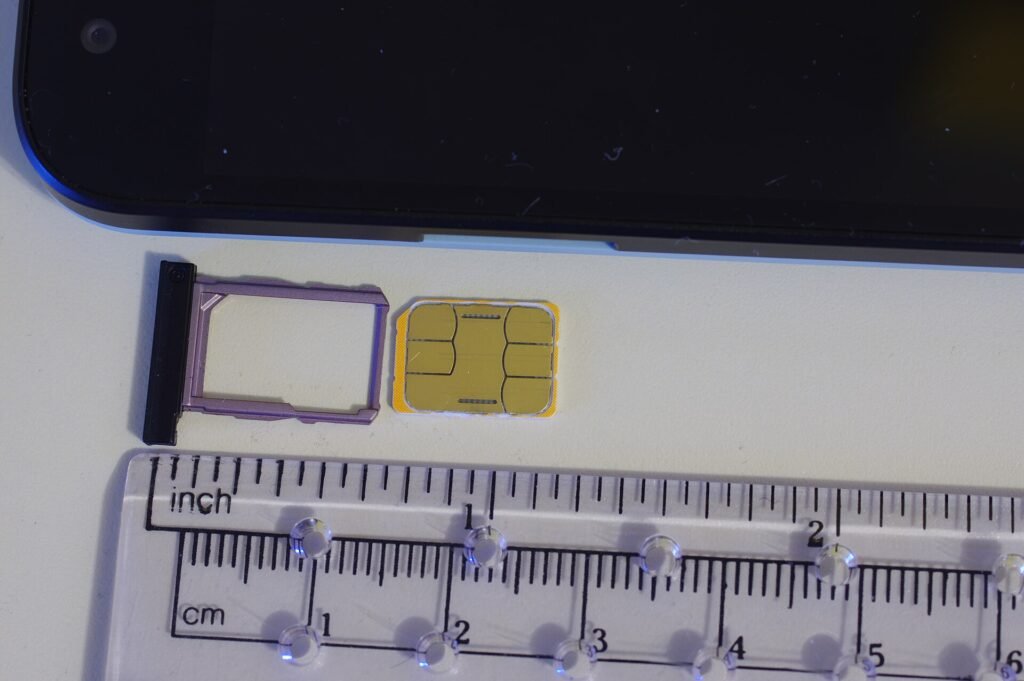
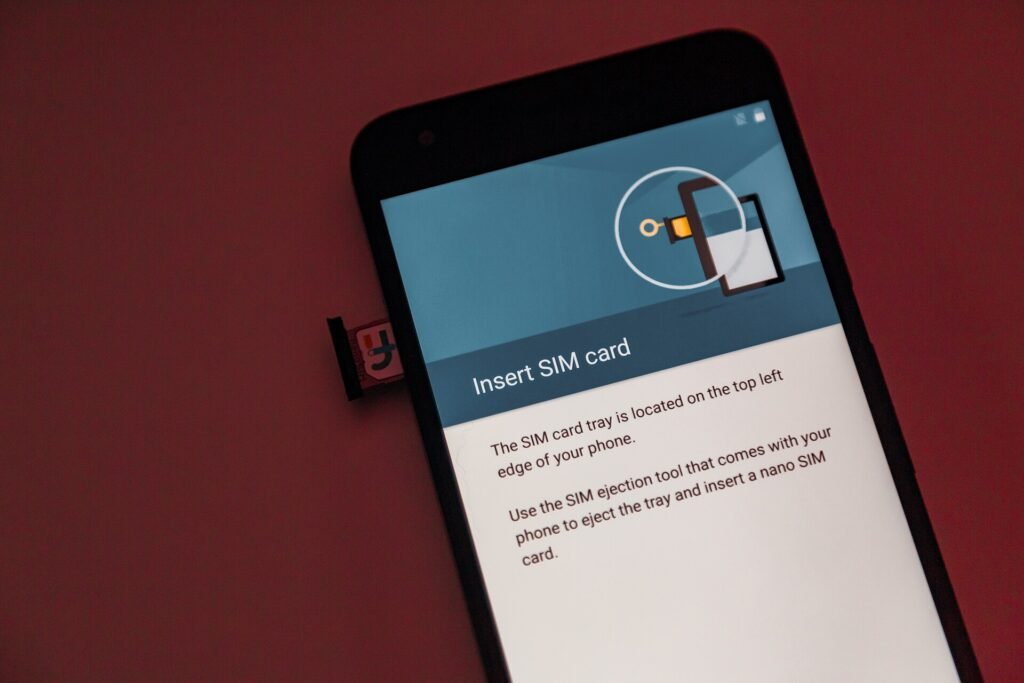
To test the SIM itself, put it in another unlocked phone. If it also has no service there, the SIM or the account is the problem.
6. Update your phone and carrier settings
On iPhone open Settings > General > About and wait a moment. If a carrier settings update is available, a prompt appears. Then check Settings > General > Software Update. On Android open Settings > System > Software update. Updates often include fixes for network drops.
7. Use Wi-Fi calling where service is weak
If your carrier supports Wi-Fi calling, you can place calls and send messages over Wi-Fi when the mobile signal is poor. On iPhone open Settings > Phone > Wi-Fi Calling. On Android look under Settings > Network & internet > Calls & SMS. The exact menu varies by phone and carrier. This works around coverage problems rather than fixing them.
8. Check the case and the phone’s condition
Remove any thick or metal case and test again, because metal can block signals. Avoid covering the lower edge and the top edge of the phone with your hand, where antennas often sit. If the phone was dropped or got wet, an antenna or other part may be damaged.
9. Reset network settings
On iPhone open Settings > General > Transfer or Reset iPhone > Reset > Reset Network Settings. On Pixel phones open Settings > System > Reset options > Reset Wi-Fi, mobile & Bluetooth. On Samsung phones open Settings > General management > Reset > Reset network settings.
Warning: This removes saved Wi-Fi passwords, paired Bluetooth devices and some cellular settings. Make sure you know your Wi-Fi password first. Photos, apps and accounts are not deleted.
10. Check your account and contact your carrier
Make sure your bill is paid and your line is active. Ask your carrier to check for outages at your address, to refresh your line, or to send a replacement SIM. If the problem is limited to one spot, ask what coverage and Wi-Fi calling options they offer.
Frequently asked questions
Why does my phone lose service inside buildings?
Thick walls, metal and energy-efficient glass weaken mobile signals. Wi-Fi calling or a carrier-approved booster helps.
Why does service drop only while I am travelling?
Moving between towers or into gaps in coverage causes drops. Switching from 5G to LTE can make the connection steadier in fringe areas.
Is it my phone or my carrier?
If another phone on the same carrier works in the same place and yours does not, suspect your phone or SIM. If both lose service, suspect the network or the location.
Why does my service keep going in and out?
Service that keeps going in and out usually means the phone is at the edge of coverage, or keeps switching between 5G and 4G and failing to reconnect. Switching to LTE (step 4) and using Wi-Fi calling (step 7) are the first things to try. If it happens everywhere, check the SIM and your account (steps 5 and 10).
If the phone shows an actual error such as “mobile network not available”, read how to fix mobile network not available.
When to contact support
If the SIM works in another phone but your phone has no service with any SIM, the phone may have a hardware fault, so contact the phone maker. If the problem follows the SIM, contact your carrier. See our mobile signal overview for more checks, or visit Apple iPhone Support or Android Help for device-specific guidance.
Related guides
Mobile Network Not Available: How to Fix It on Android and iPhone
Mobile network not available means the phone cannot reach your carrier. Check coverage and the selected SIM, reselect the network, reset the APN, then…
How to Fix an Android Phone That Is Not Charging or Charges Slowly
An Android phone that will not charge is usually the cable, adapter or a dirty port. Test these first, then check battery settings, safe…

How to Fix Android Connected to Wi-Fi but No Internet
Android shows Wi-Fi connected but nothing loads? First decide whether the network or the phone is at fault, then work through these fixes.