Could Not Activate Cellular Data Network on iPhone: 9 Fixes

On this page
If your iPhone shows “Could Not Activate Cellular Data Network,” it is telling you that it tried to turn on mobile data and the carrier connection did not come up. It usually appears after inserting a new SIM, switching to an eSIM, changing carrier, restoring a backup, updating iOS or travelling. In most cases it is a settings or SIM problem you can fix in a few minutes without visiting a store.
Quick fix: Turn on Airplane Mode for 15 seconds, turn it off, then restart the iPhone. If the message returns, go to Settings > Cellular, make sure Cellular Data is on, and check that your plan is active with your carrier.
Why this error appears
- Cellular Data is switched off, or switched off for the app you are using.
- The SIM or eSIM is not activated, or the plan or account is suspended or has no data.
- The SIM is dirty, loose or damaged.
- Carrier settings are outdated or missing after a carrier change or iOS update.
- Wrong or missing APN settings for your carrier.
- A corrupted network configuration on the iPhone.
- A temporary network outage in your area.
9 ways to fix it
1. Toggle Airplane Mode and restart
Open Control Center, tap the airplane icon, wait 15 seconds and tap it again. Then restart the iPhone (Settings > General > Shut Down, wait 30 seconds, then power on). This refreshes the connection to the cell network and fixes many one-off failures.
2. Check that Cellular Data is on
Go to Settings > Cellular and turn Cellular Data on. Scroll down and make sure the app that shows the error is also allowed to use cellular data. If you have two lines, check the line you want to use for data under Cellular Data or Cellular Plans.
3. Turn off Low Data Mode and VPN
In Settings > Cellular > Cellular Data Options, turn off Low Data Mode while testing. Also switch off any VPN in Settings, because a broken VPN profile can block mobile data.
4. Make sure your plan and SIM are active
Contact your carrier or log in to your account. Confirm that your line is active, bills are paid, you have data left, and the SIM or eSIM is activated, especially if it is new or you just changed plans. This is the most common cause on a new SIM.
5. Update carrier settings
Connect to Wi-Fi, then go to Settings > General > About and wait a few seconds. If a carrier settings update is available, a prompt appears. Tap Update. Also install any pending iOS update in Settings > General > Software Update.
6. Remove and reinsert the SIM
Turn the iPhone off, use a SIM tool to open the tray, take the SIM out, check it for damage or dust, then reinsert it flat and turn the phone on again. If you have another phone, test the SIM there. If it fails there too, ask your carrier for a replacement SIM.
7. Re-add the eSIM
If you use an eSIM, ask your carrier to reissue the activation. Then delete the eSIM under Settings > Cellular and add it again with the new QR code or carrier app. Do not delete it before you have a way to reactivate it.
8. Check APN settings (some carriers)
Many carriers configure this automatically. If yours does not, open Settings > Cellular > Cellular Data Network (on some iOS versions it sits under Cellular Data Options) and enter the APN details published by your carrier. Prepaid and MVNO carriers are most likely to need this. If the section is missing, your carrier locks it and you need to contact them.
9. Reset network settings
As a last software step, go to Settings > General > Transfer or Reset iPhone > Reset > Reset Network Settings. This removes saved Wi-Fi passwords, VPN and Bluetooth pairings, so note down what you need first. Restart afterwards and test mobile data.
If you are travelling or abroad
Turn on Data Roaming in Settings > Cellular > Cellular Data Options if your plan includes roaming, and confirm the roaming package with your carrier. If you switched to a local SIM, make sure the iPhone is not carrier locked.
When to contact your carrier or Apple
If you tried every step and the message still appears, call your carrier and ask whether there is an outage, an unprovisioned line or a SIM swap issue. If the SIM works in another phone but not yours, book a support check with Apple, since the modem or SIM reader may be faulty.
Related guides: Mobile network not available and phone keeps losing service.
Frequently asked questions
What does “Could not activate cellular data network” mean?
Your iPhone tried to start a mobile data connection and the carrier network did not accept or complete it. The cause is usually a settings, SIM or account issue.
Will resetting network settings delete my data?
No. It does not delete photos, apps or messages. It removes saved Wi-Fi networks and passwords, VPN settings and Bluetooth pairings.
Why does it happen on a new SIM or eSIM?
The line may not be fully activated yet, or the carrier settings have not downloaded. Activate the line with your carrier, connect to Wi-Fi and check for a carrier settings update.
Can a software update fix it?
Sometimes. iOS and carrier settings updates fix network bugs, so install both before using the reset options.
Is the problem my iPhone or my carrier?
Test your SIM in another phone, or another working SIM in your iPhone. If the SIM fails everywhere, it is the SIM or account. If other SIMs fail in your iPhone, the phone needs service.
Related guides
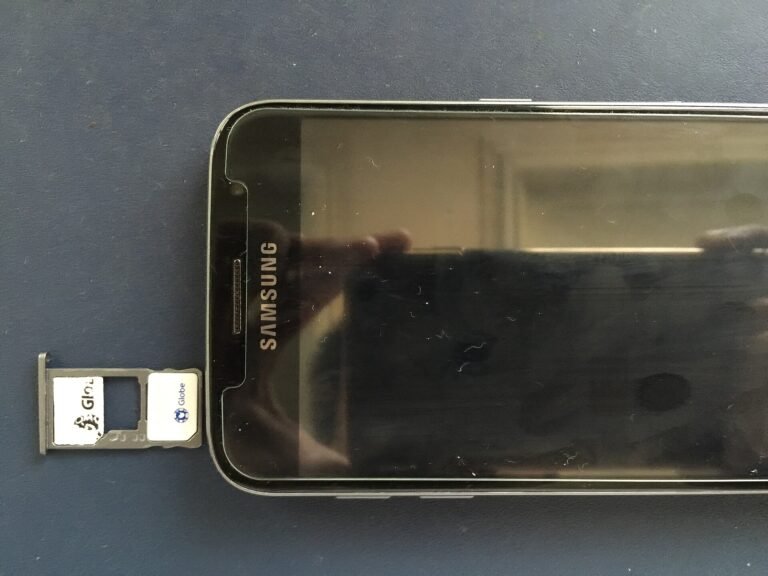
Mobile Network Not Available: How to Fix It on Android and iPhone
Mobile network not available means the phone cannot reach your carrier. Check coverage and the selected SIM, reselect the network, reset the APN, then…
Why Does My Phone Keep Losing Service? Causes and Fixes for iPhone and Android
A phone that keeps losing service has a coverage, network or phone problem. Work out which first, then toggle airplane mode, reseat the SIM,…

How to Fix iPhone Storage Full (Not Enough Storage)
iPhone storage full? Check what uses the space, offload unused apps, clear large message attachments, optimise photos and empty Recently Deleted, safest steps first.