How to Fix NS_ERROR_NET_TIMEOUT in Firefox (The Connection Has Timed Out)

On this page
Firefox shows NS_ERROR_NET_TIMEOUT together with the message “The connection has timed out” when it contacted a website but did not get an answer in time. The page may be down or slow, but a weak connection, a VPN or proxy, an add-on, or a firewall can cause the same message. Work through the steps below from the quickest check to the most involved.
Quick fix: Reload the page, then open a different website. If other sites load, try the page on your phone using mobile data to see whether the site itself is down. If only Firefox fails, test in Troubleshoot Mode (step 5).
What causes NS_ERROR_NET_TIMEOUT
- The website is down, overloaded or very slow to respond.
- Your internet connection is slow, unstable or briefly offline.
- A VPN or proxy that is slow or not working.
- A Firefox add-on or setting that interferes with connections.
- Antivirus or firewall software that blocks or delays Firefox.
- A DNS problem that makes lookups slow.
1. Reload and test other websites
Press Ctrl + R (or Cmd + R on a Mac) to reload. Check that the address starts with the right https:// and has no typos. Then open two or three other websites. If every site times out, the problem is your connection, so go to step 3. If only one site fails, the problem is probably the site, so go to step 2.
2. Check whether the website is down
Try the same page on your phone with Wi-Fi turned off so it uses mobile data. If it loads there, the problem is on your computer or home network. If it fails there too, the site is down or slow for everyone, and you can only wait and try again later.
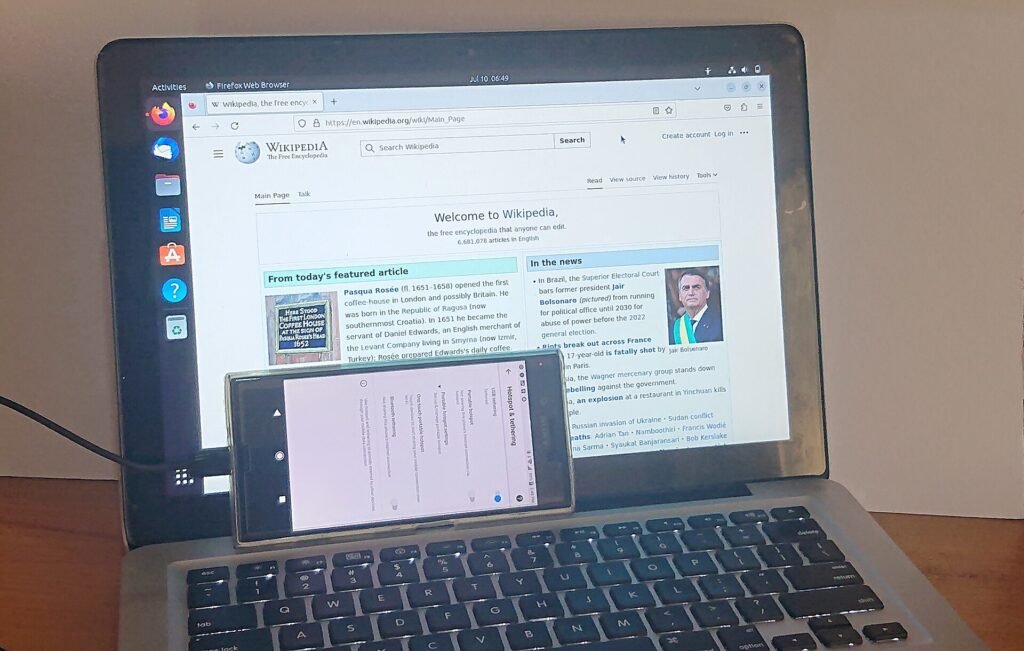
You can also test your computer with a different connection by sharing your phone’s internet through a hotspot or by tethering. If the page loads on that connection, your home network or provider is the cause.
3. Restart your router and modem
Unplug the router and modem for about 30 seconds, plug them back in and wait a few minutes. If your connection keeps dropping, see how to fix Wi-Fi that keeps disconnecting.
4. Turn off your VPN and check the proxy
Disconnect any VPN and reload the page. Then check Firefox’s own proxy setting. Open Settings > General, scroll to Network Settings and select Settings. If a manual proxy is set and you do not use one, choose No proxy or Use system proxy settings, then select OK.
5. Test in Troubleshoot Mode
Open the Firefox menu, choose Help > Troubleshoot Mode, and confirm the restart. Troubleshoot Mode turns off add-ons and custom settings for that session. Open the page again. If it loads, an add-on or a setting is the cause. Close Firefox normally to leave Troubleshoot Mode.
6. Disable add-ons one at a time
If Troubleshoot Mode fixed it, press Ctrl + Shift + A to open Add-ons and themes. Turn off your add-ons one by one, especially ad blockers, privacy tools and VPN extensions, and reload the page after each one to find the cause.

7. Clear cookies and cached data for the site
Open Settings > Privacy & Security, find Cookies and Site Data, and select Manage Data. Search for the website, remove its entries and save. You will be signed out of that site. Then reload the page.
8. Check DNS over HTTPS
In Settings > Privacy & Security, scroll to DNS over HTTPS. If it is set to a higher protection level, change it to Default Protection or Off and reload the page. If that fixes it, the secure DNS provider may be slow or blocked on your network. For a related lookup error, see how to fix ERR_NAME_NOT_RESOLVED.
9. Check your firewall and antivirus
Security software can delay or block Firefox. Open its settings and check whether Firefox is blocked, or whether it has a web-scanning feature that you can pause briefly to test. Turn protection back on afterwards, and add an exception for Firefox rather than leaving it off.
10. Update Firefox
Open the menu and choose Help > About Firefox. Firefox checks for updates and installs them. Restart when prompted, then try the page again.
11. If it is your own website
A timeout on your own site means the server took too long to answer. Check whether your hosting is overloaded or restarting, whether a firewall or security plugin is delaying requests, and whether a heavy task is running. If your host’s status page shows no problem, ask them to check the server logs for that time.
Frequently asked questions
Is NS_ERROR_NET_TIMEOUT a problem with my computer?
Not necessarily. It means no answer arrived in time, which can be the site, your connection or Firefox settings. Steps 1 and 2 tell you which.
Why does the page load in Chrome but not Firefox?
Firefox has its own proxy, DNS over HTTPS and add-on settings. If another browser works, check steps 4, 5 and 8.
Will clearing cookies fix a timeout?
Rarely, but a damaged cookie can occasionally cause a stuck connection to one site. It is a quick test after the main steps.
When to contact support
If every browser times out on every site, contact your internet provider. If only one site times out for everyone, contact the site’s owner. For another browser error with a similar cause, read how to fix ERR_CONNECTION_RESET in Chrome. You can also use Mozilla’s Firefox Support site.
Related guides

ERR_CONNECTION_ABORTED in Chrome: 9 Ways to Fix It
Chrome shows ERR_CONNECTION_ABORTED? Follow these 9 steps covering extensions, VPN, antivirus, QUIC and network reset.
PR_CONNECT_RESET_ERROR in Firefox: 9 Fixes for Secure Connection Failed
Firefox shows "Secure Connection Failed" with PR_CONNECT_RESET_ERROR? Try these 9 fixes: VPN, proxy, HTTP/3, antivirus, DNS and more.
How to Fix ERR_CONNECTION_FAILED in Chrome
ERR_CONNECTION_FAILED means Chrome could not make a connection at all. Test other sites, turn off VPN and proxy, check the firewall, reset the network…