PR_CONNECT_RESET_ERROR in Firefox: 9 Fixes for Secure Connection Failed
On this page
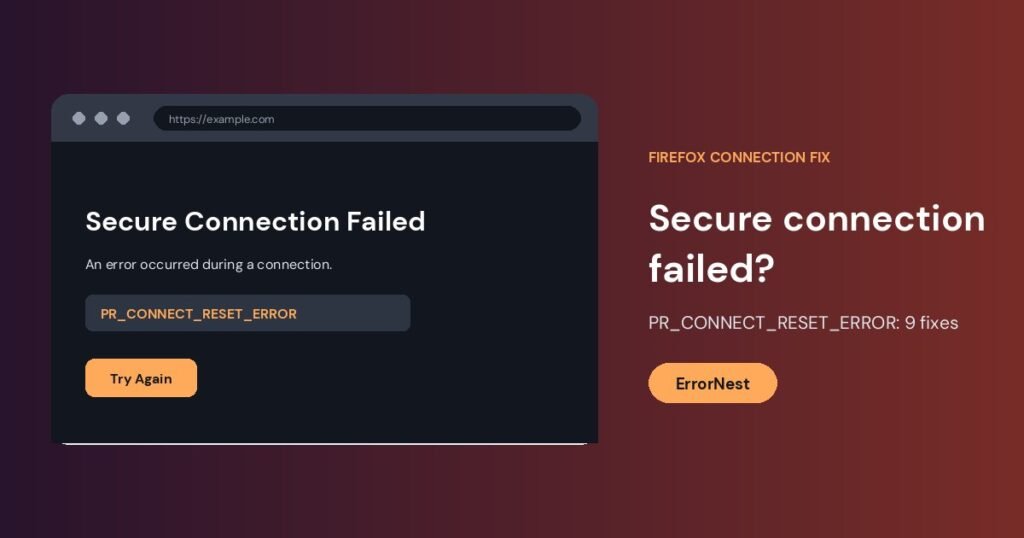
If Firefox shows “Secure Connection Failed” with the code PR_CONNECT_RESET_ERROR, it means the connection to the website was reset while Firefox was setting up a secure (HTTPS) session. Either the server closed the connection, or something between you and the server did, such as a VPN, proxy, antivirus HTTPS scanning, your router or your ISP. The good news is that it is usually fixable from your own computer.
Quick fix: Turn off any VPN or proxy, then open Settings > Privacy & Security, clear cookies and site data, and restart Firefox. If it still fails, test the same site in a private window with extensions disabled.
What causes PR_CONNECT_RESET_ERROR
- A VPN, proxy or “secure web” feature that interrupts the connection.
- Antivirus or firewall software that scans HTTPS traffic.
- A browser extension that blocks or rewrites requests.
- Problems with the newer HTTP/3 (QUIC) protocol on your network.
- Corrupted cache, cookies or Firefox profile data.
- DNS or router problems, or an ISP that blocks or resets the connection.
- The website server itself being down or overloaded.
9 ways to fix it
1. Check whether it is just that site
Try another website and the same site on your phone using mobile data. If only one site fails everywhere, the problem is on the server side. Wait and try again later. If many sites fail only in Firefox, continue with the steps below.
2. Turn off VPN and proxy
Disconnect any VPN. Then open Settings > General, scroll to Network Settings, click Settings and choose No proxy or Use system proxy settings. Save and reload the page.
3. Test in Troubleshoot Mode
Click the menu, choose Help > Troubleshoot Mode and restart. This starts Firefox with extensions and custom settings disabled. If the site loads, an extension or setting is the cause. Disable your extensions one by one to find it.
4. Clear cookies, cache and site data
Go to Settings > Privacy & Security > Cookies and Site Data > Clear Data, tick both boxes and clear. Restart Firefox and try again.
5. Pause antivirus or firewall HTTPS scanning
Many security suites have a “Web Shield,” “HTTPS scanning” or “encrypted connections scan” option. Turn that feature off temporarily and reload the page. If it fixes the error, add an exception for Firefox or leave the feature off.
6. Disable HTTP/3 (QUIC) in Firefox
Type about:config in the address bar and accept the warning. Search for network.http.http3.enable and set it to false. Restart Firefox. This forces it back to HTTP/2, which some networks and routers handle better. In newer versions the preference name can differ, so search for “http3” if you do not see it.
7. Flush DNS and change DNS servers
On Windows, open Command Prompt as administrator and run ipconfig /flushdns. Then change your DNS to a public resolver such as 1.1.1.1 or 8.8.8.8 in your network adapter settings, and restart the router for good measure.
8. Update Firefox
Open the menu, go to Help > About Firefox and let it update. Older versions can fail TLS handshakes that newer sites expect.
9. Refresh Firefox
If nothing else works, go to about:support and choose Refresh Firefox. This keeps your bookmarks and passwords but removes extensions and custom settings. Create a fresh profile if the problem remains.
When it is not your computer
If every device on your network fails to open the site, restart your router and contact your ISP. Some ISPs and company or school networks block sites and reset the connection. A site that is down for everyone cannot be fixed from your side.
Related guides: NS_ERROR_NET_TIMEOUT in Firefox and ERR_CONNECTION_RESET in Chrome.
Frequently asked questions
What does PR_CONNECT_RESET_ERROR mean?
The connection was reset during the secure handshake. Firefox could not finish creating an encrypted connection to the website.
Is PR_CONNECT_RESET_ERROR a virus?
No. It is a connection error. Security software can cause it by interfering with HTTPS, but the error itself is not a sign of an infection.
Why does it only happen in Firefox?
Chrome and Edge may use different proxy, protocol or security settings. Test in another browser to confirm. If it works there, the cause is in Firefox settings, extensions or profile.
Will clearing cookies fix it?
Sometimes. Corrupted site data can break the connection, so it is a quick step to try, but the VPN, proxy and antivirus checks fix more cases.
Should I disable HTTP/3 permanently?
Only if it fixes the problem. You can turn it back on later, since the setting only changes which protocol Firefox prefers.
Related guides

ERR_CONNECTION_ABORTED in Chrome: 9 Ways to Fix It
Chrome shows ERR_CONNECTION_ABORTED? Follow these 9 steps covering extensions, VPN, antivirus, QUIC and network reset.
How to Fix ERR_CONNECTION_FAILED in Chrome
ERR_CONNECTION_FAILED means Chrome could not make a connection at all. Test other sites, turn off VPN and proxy, check the firewall, reset the network…
How to Fix ERR_NO_BUFFER_SPACE in Chrome on Windows
ERR_NO_BUFFER_SPACE means Windows could not allocate network buffer space for a new connection. Close heavy apps, turn off VPNs, reset the network stack and…